1. What Angel's Voice is
Angel's Voice is an augmentative and alternative communication (AAC) app for Android. It gives a voice to children who do not speak, or speak very little. The child taps picture cards, builds a phrase, and the app speaks it out loud.
The app comes ready with 84 cards in 8 categories and works without an internet connection. No account, no ads, and the child's data never leaves the device.
2. Installing and updating
Which file to download
On angelsvoice.gr there are two APK files of the same version. They differ only in their "signature", something Android cares about when it updates an app that is already installed.
| File | Who it is for |
|---|---|
Standard buildangelsvoice.apk | For everyone. A fresh install, or an update if you installed the app from angelsvoice.gr. |
Test-signed buildangelsvoice-debug.apk | Only if you previously received a test build directly from the developer (for example over a cable) and the standard build refuses to install with a message like "signature does not match" or "app not installed". |
Steps
- Open angelsvoice.gr on the phone or tablet and tap the download.
- Open the downloaded file. Android will ask for permission to install from "unknown sources". Allow it.
- Open Angel's Voice. It is ready, with the 84 starter cards.
Requires Android 6.0 or newer. Works on phones and tablets. On a 7-inch or larger tablet the child sees more cards without scrolling.
What happens on an update
When you install a newer version over the old one, nothing is lost: cards, photos, recordings, colour and settings all stay exactly as the child knows them. In addition, the app keeps a complete copy by itself before every update (see Backup). New pictures or new cards that come with a version are never applied automatically. The app suggests them in the settings and you decide when.
3. The child's screen
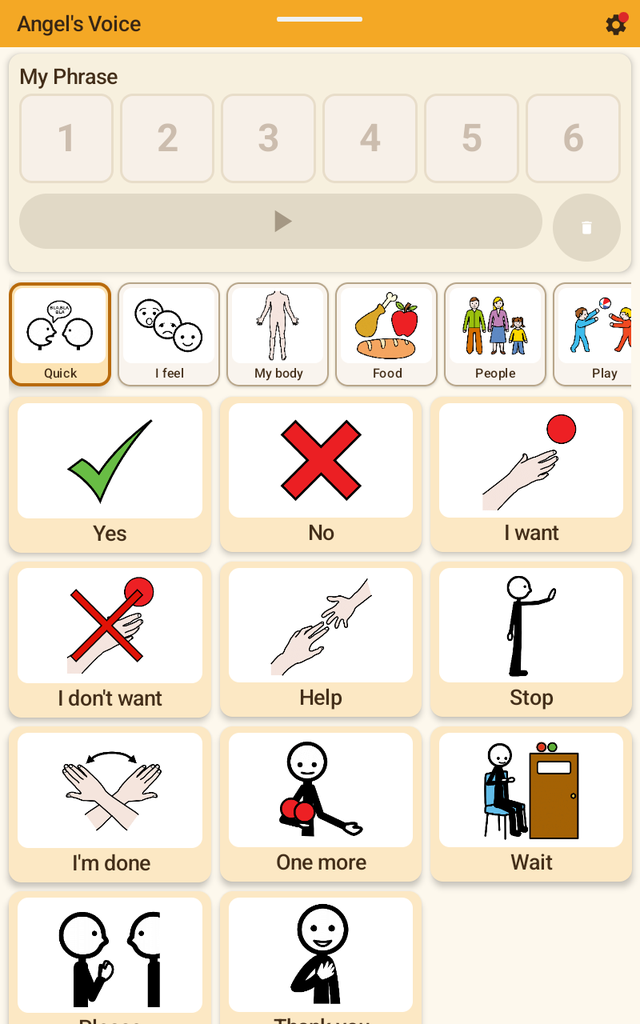
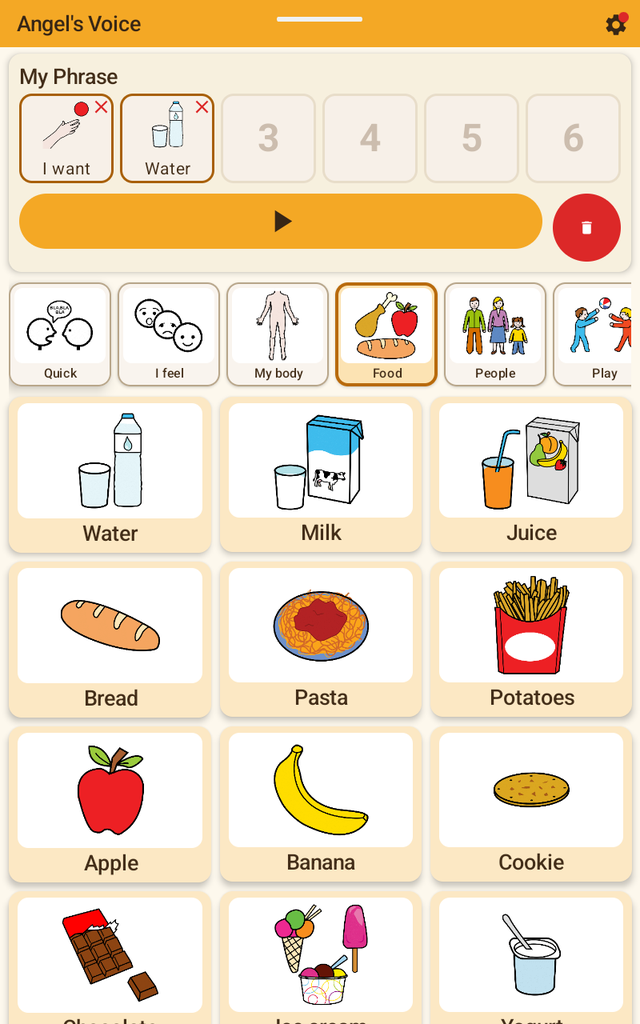
The screen has three parts:
- My Phrase. Six slots (adjustable from 1 to 6). Every card the child taps goes into the next empty slot. The big ▶ button speaks the whole phrase. The red bin button clears it. Tapping the × on a single word removes only that word.
- Categories. A horizontal row. The child swipes left and right to see them all. The selected one has a bold outline.
- Cards. A large picture and the word. Tap = the word goes into the phrase and is spoken.
For the Greek starter cards the voice is built into the app, so they sound the same on every device. For English cards and for cards you create yourself, the device's own text-to-speech voice is used, unless you record the word yourself.
4. Entering the parent settings
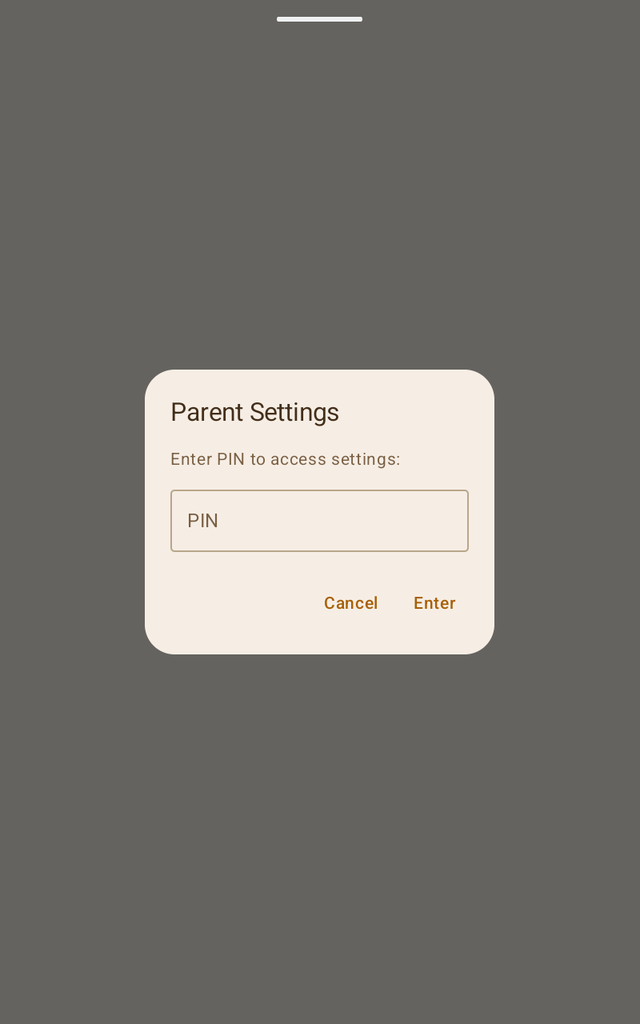
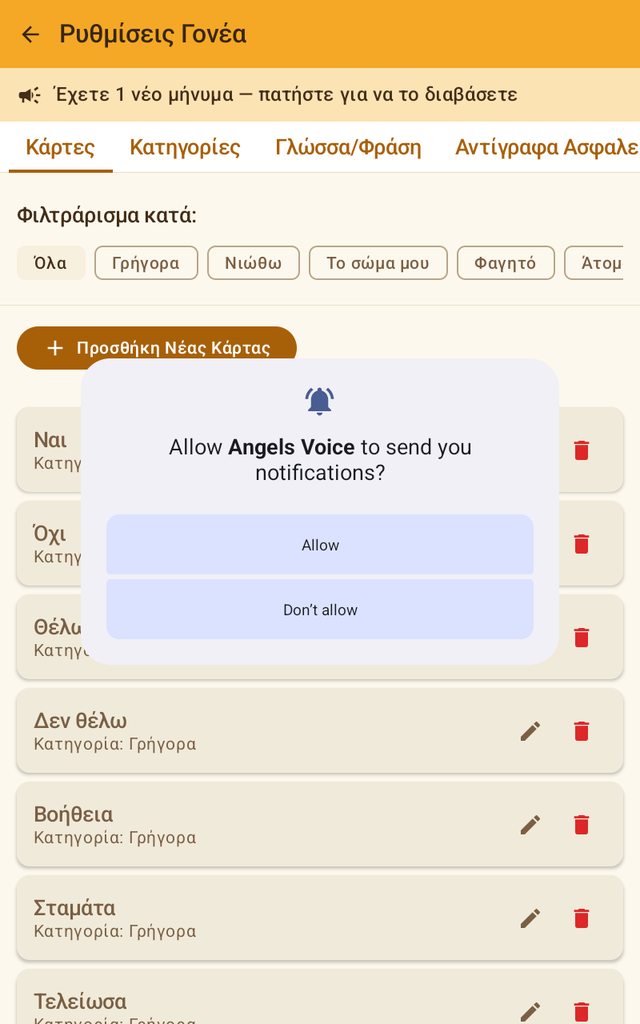
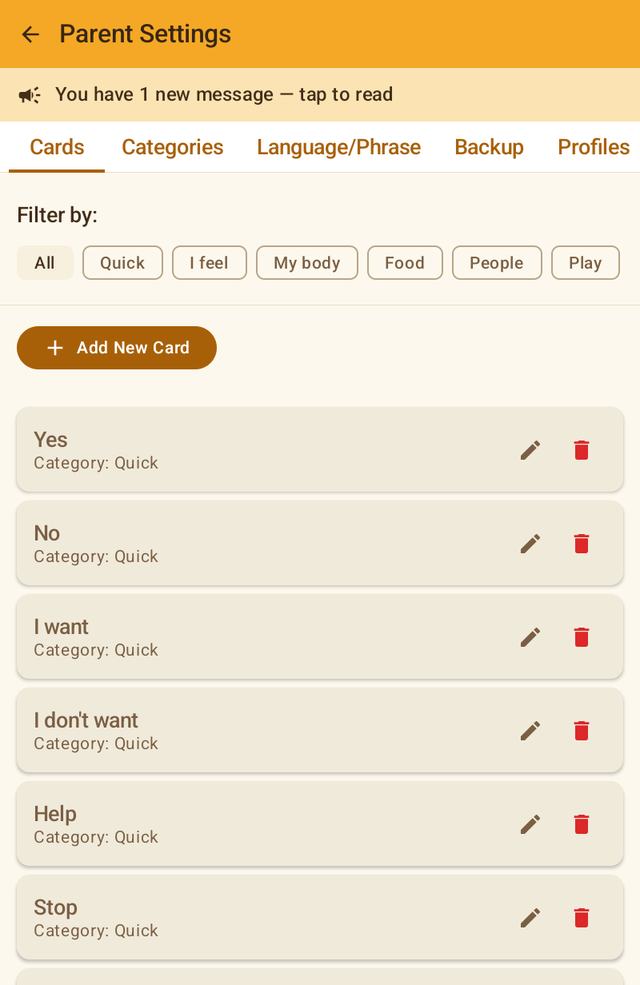
The settings have six tabs along the top: Cards, Categories, Language/Phrase, Backup, Profiles, Information. On small screens, swipe the tab row to reach the rest. The arrow at the top left takes you back to the child's screen.
If you allow notifications, you will hear about new versions. If not, messages still arrive in the "mailbox" on the Information tab. Notifications are always silent.
5. "Cards" tab
Changing the order by dragging
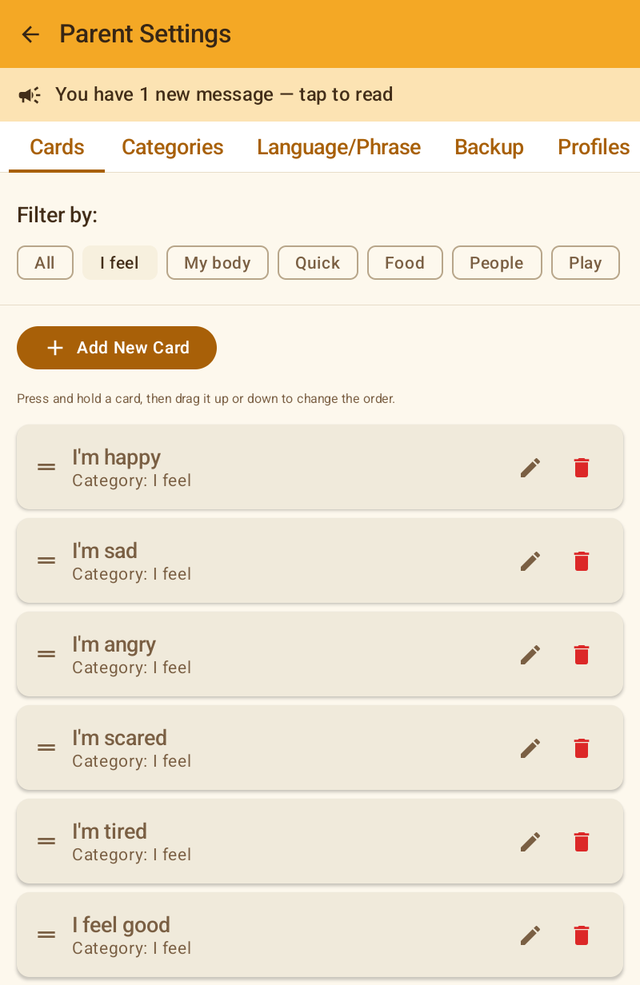
The order your child sees is the order of this list. Pick one category in the filter (with "All" dragging is disabled, because each category has its own order), press and hold a card and drag it. When you let go, the new order is saved immediately. Categories are reordered the same way, on the "Categories" tab.
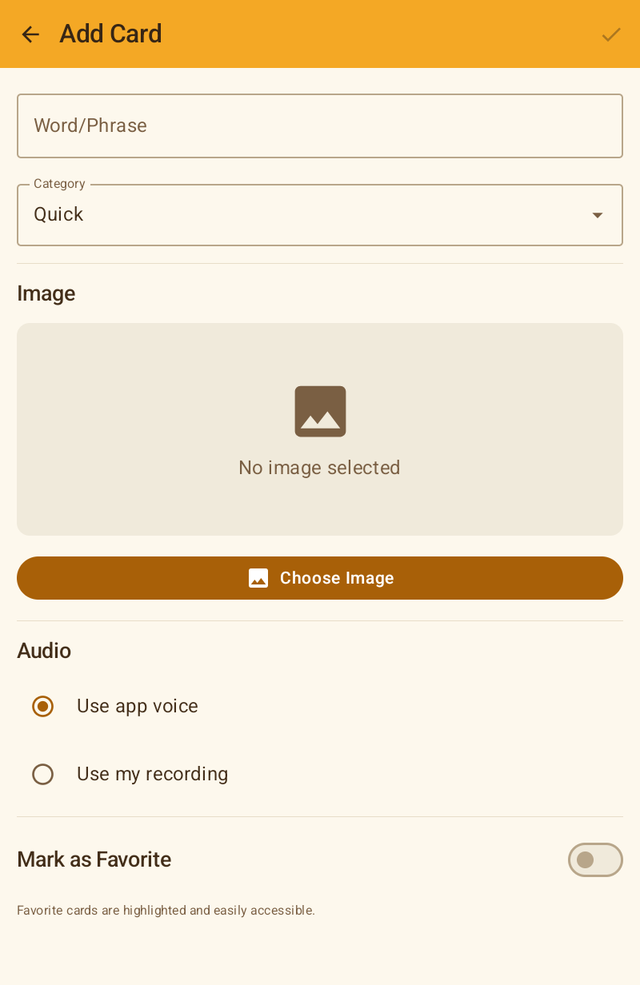
Adding and editing a card
| Field | What it does |
|---|---|
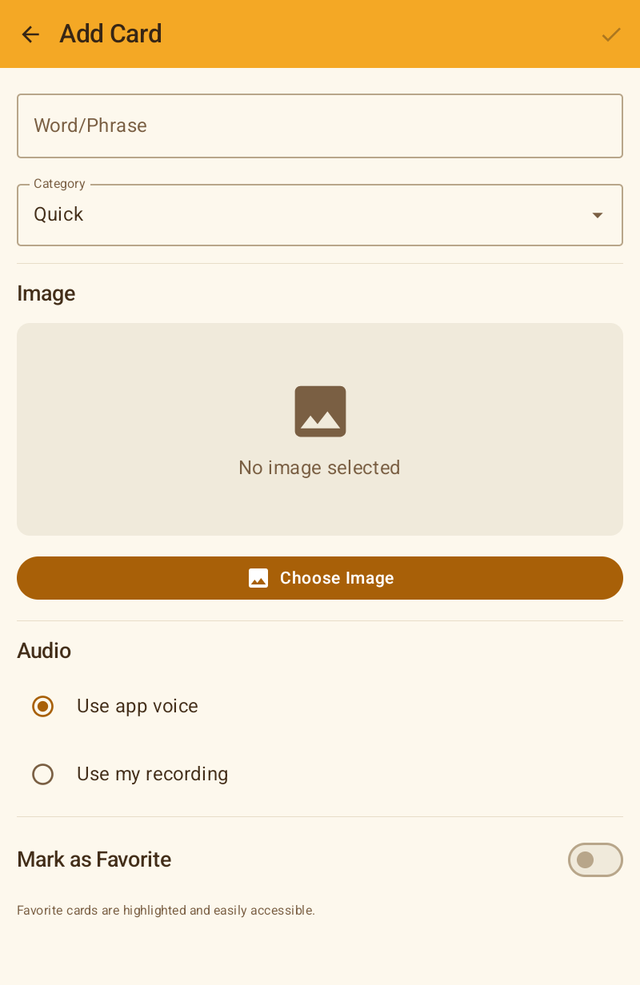
| Word/Phrase | The text shown on the card and spoken. It can be a whole sentence, e.g. "I want to go for a walk". |
| Category | Which category the card appears in. |
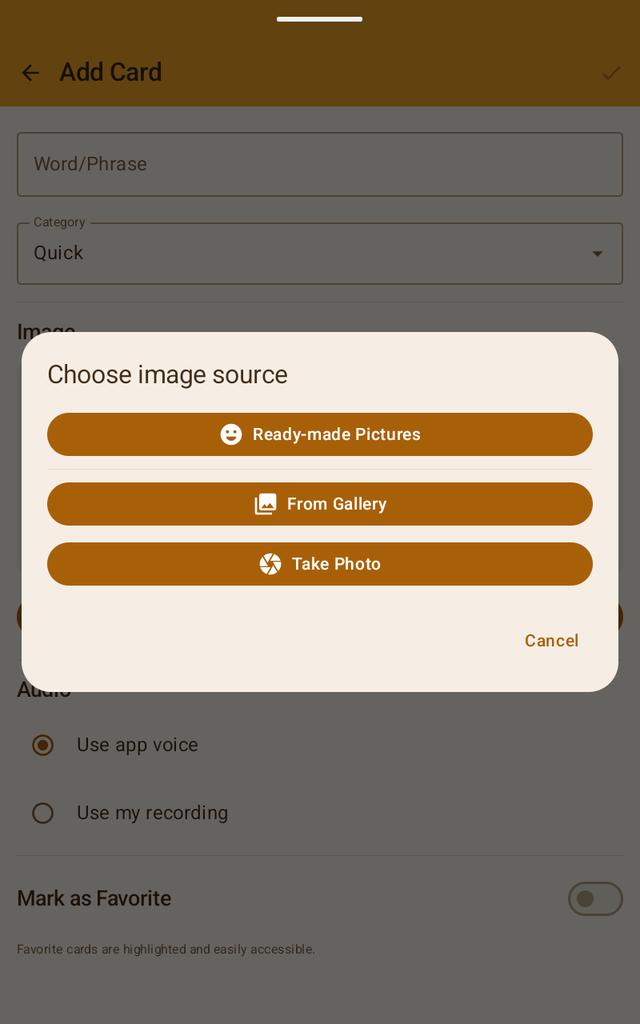
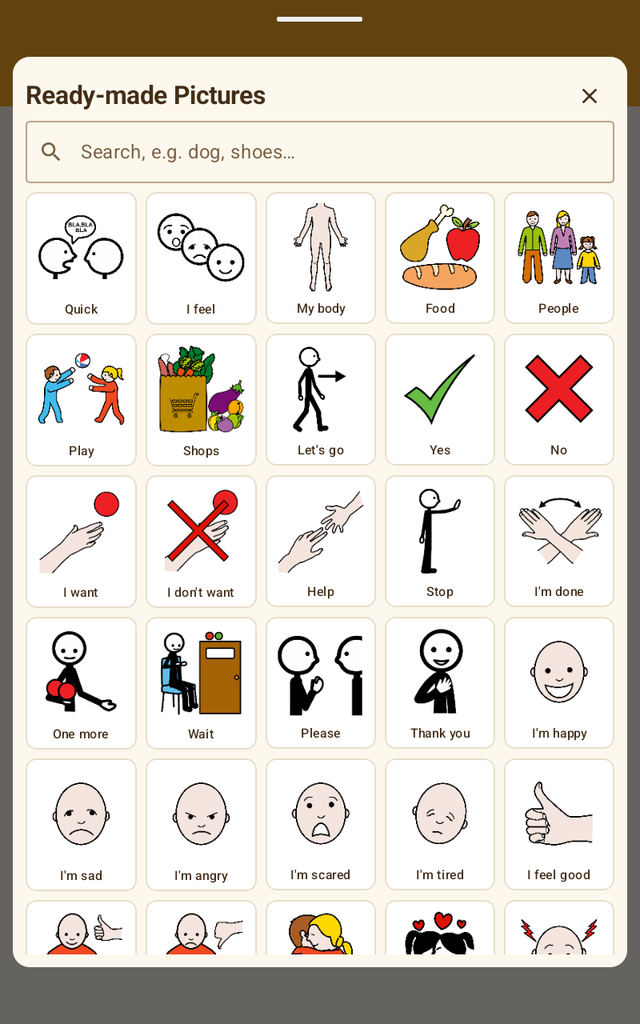
| Image | From three sources (see below). A card can have no picture, but for the child the picture is what matters most. |
| Audio | Use app voice: the built-in Greek voice for the Greek starter words, otherwise the device's text-to-speech voice. Use my recording: tap "Record", say the word, "Stop". Mum's or Dad's voice is often the best thing for the child. |
| Mark as Favorite | The card stands out visually on the child's screen. |
Card picture
Suggestions that may appear at the top
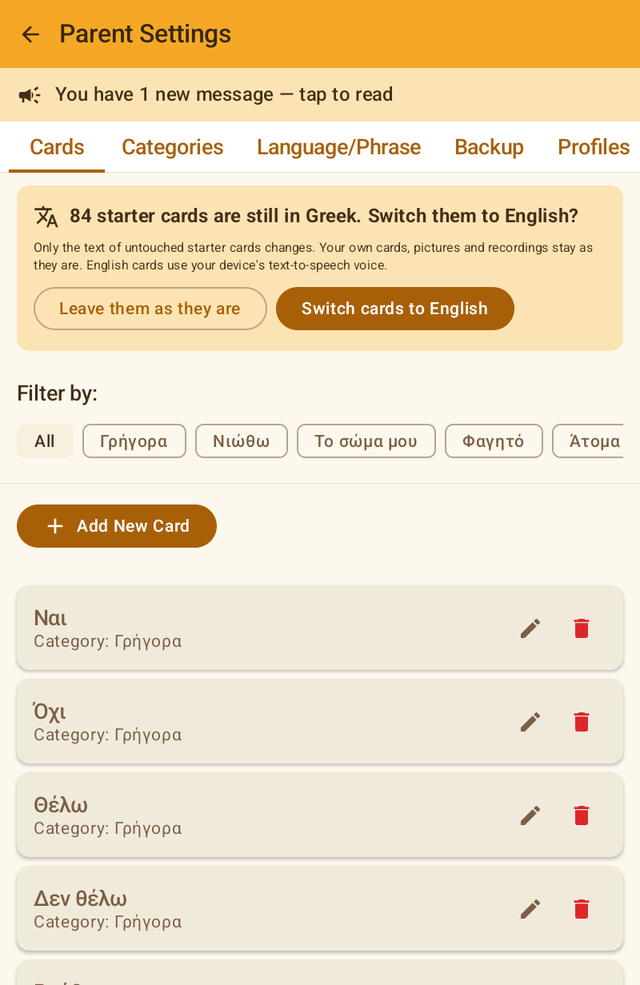
After an update or a language change, one or more coloured suggestions may appear at the top of this tab. None of them does anything on its own. If you say "no", it does not ask again.
- New, more descriptive pictures. For people who had an older version with simple icons. If you accept, only starter cards that still have the old icon change. Your photos are not touched. Best done together with the child, not behind their back.
- The new library has cards your child doesn't have. Adds the missing cards at the end of each category. Everything the child knows stays where it is.
- Starter cards in the other language. If you switch the app to English, it offers to switch the starter cards to English as well (only the ones you have not changed).
6. "Categories" tab
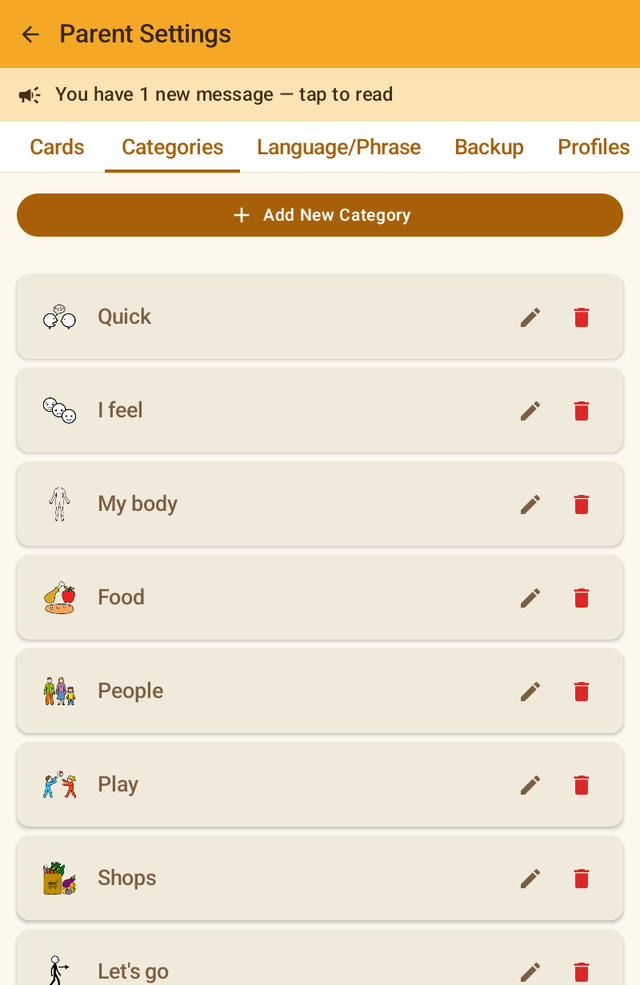
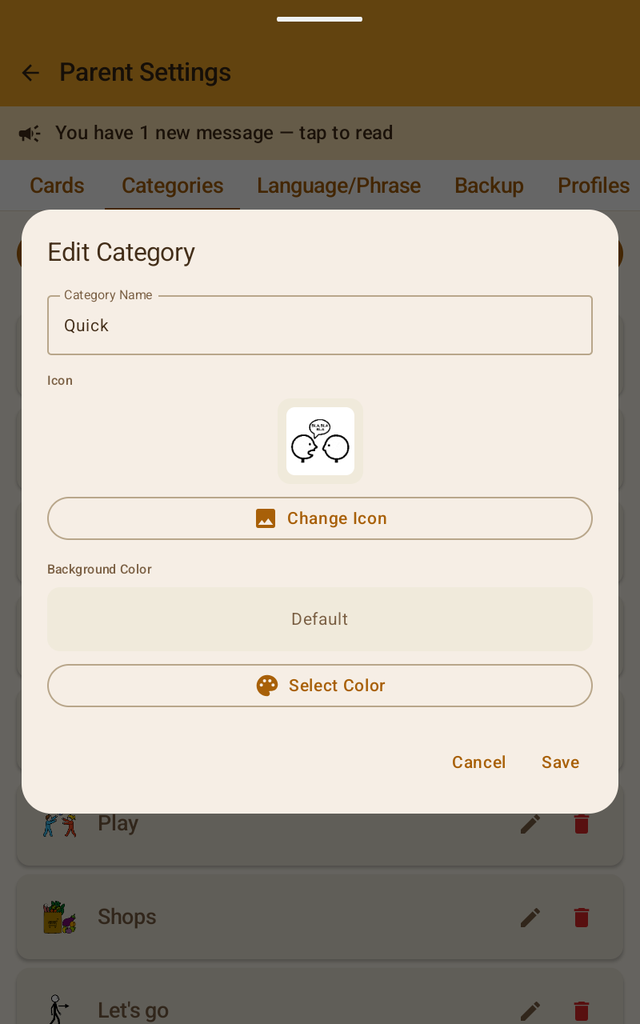
The starter categories: Quick (yes, no, I want, help, stop), I feel, My body (where it hurts, "it's too loud", "I want quiet"), Food, People, Play, Shops, Let's go. "Quick" comes first on purpose: those five words cover most of everyday communication.
Theme packs with characters
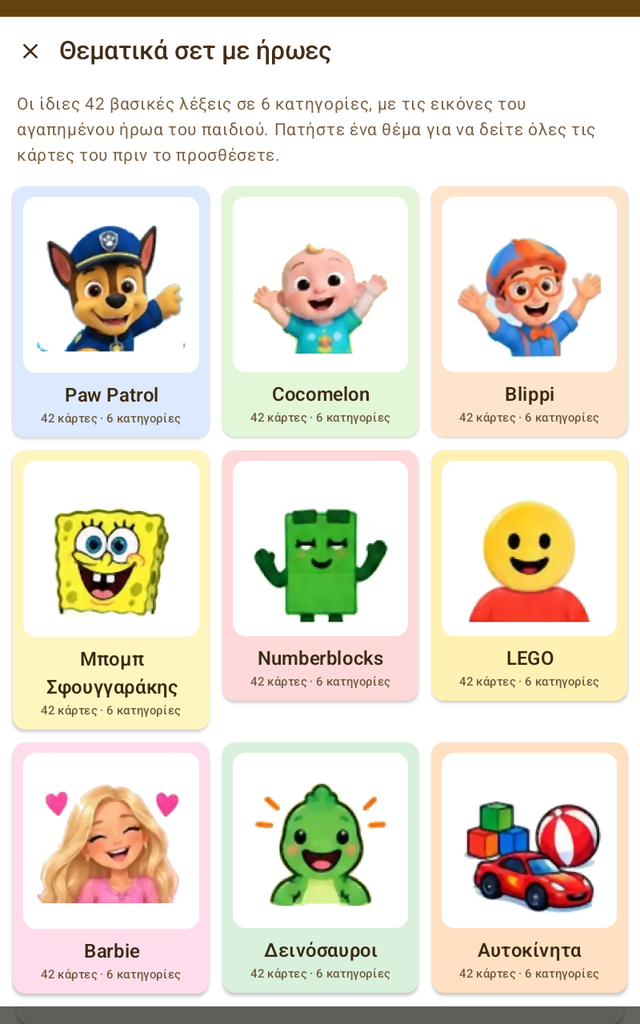
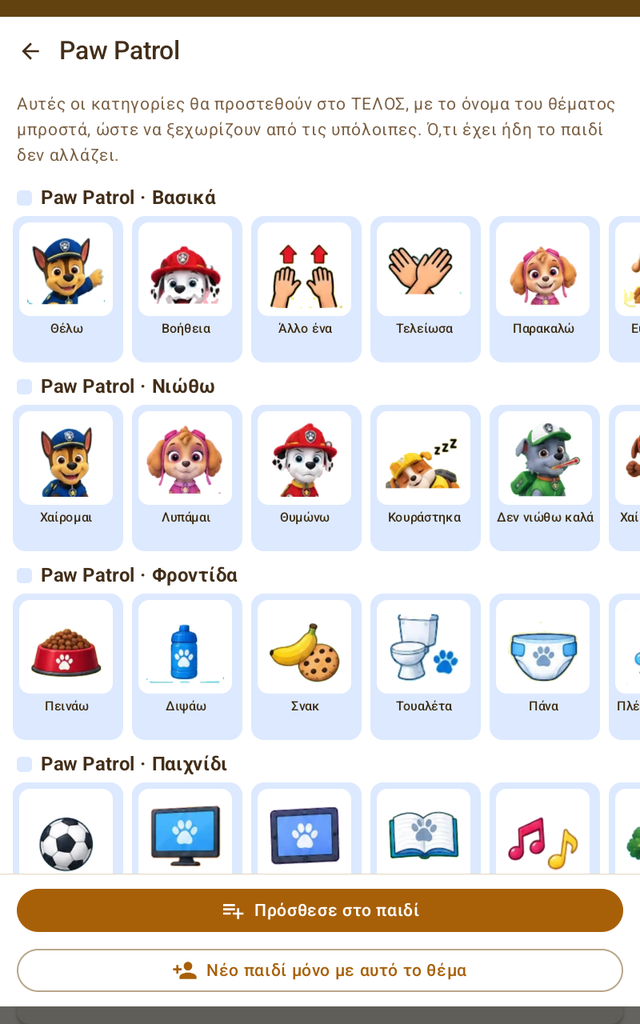
Every theme pack has the same 42 core words in 6 categories (Basics, I feel, Care, Play, People, Answers), with the pictures of the character your child loves: Paw Patrol, Cocomelon, Blippi, SpongeBob, Numberblocks, LEGO, Barbie, dinosaurs, cars, under the sea and more. In Greek, every word has a built-in voice; in English the device's text-to-speech voice is used.
- Add to my child. The 6 categories go to the end of the list, with the theme name in front (e.g. "Paw Patrol · I feel") and the theme colour on the cards, so they stand out from the PECS pictures. Nothing your child already has changes. Afterwards you can rename them, delete the ones you don't want or reorder them.
- New child with only this theme. Creates a separate profile with only the 42 theme cards, without a prefix. Useful to try a theme without touching your child's cards, or for a second child. Turns on therapist mode.
A background colour for a category helps some children tell things apart more easily, for example all food on a yellow background. It is optional.
7. "Language/Phrase" tab
App colour
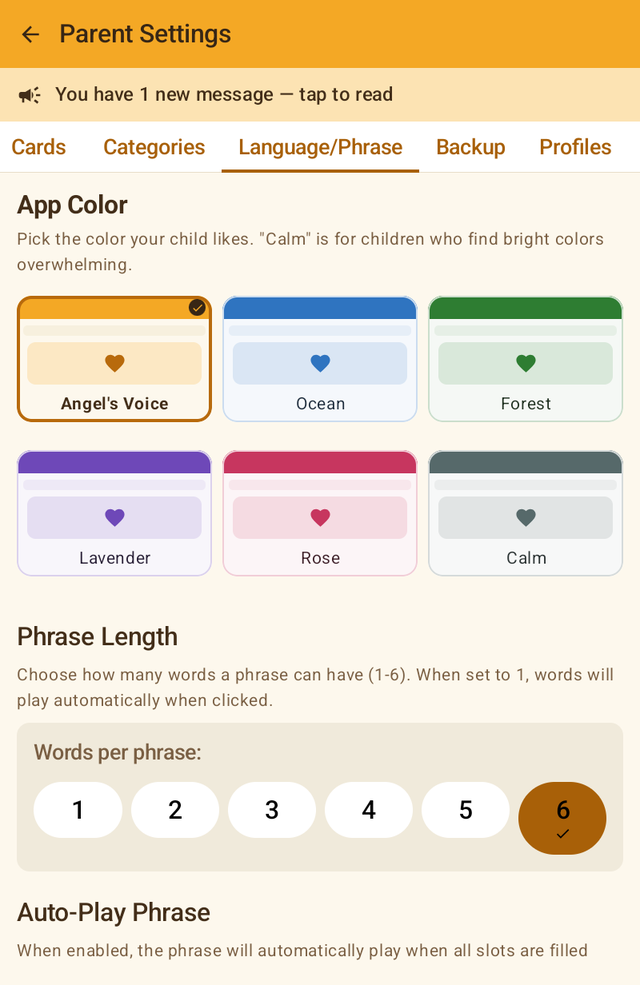
Six themes: Angel's Voice (orange), Ocean, Forest, Lavender, Rose and Calm. "Calm" uses low, restful colours for children who tire of or are overwhelmed by bright colours. The thumbnails show the real screen, so the child can point at the one they like. The colour changes immediately.
Phrase length
How many words "My Phrase" holds: 1 to 6. With 1 word the app works in single-word mode: each tap replaces the previous card and speaks immediately. Ideal for the very beginning.
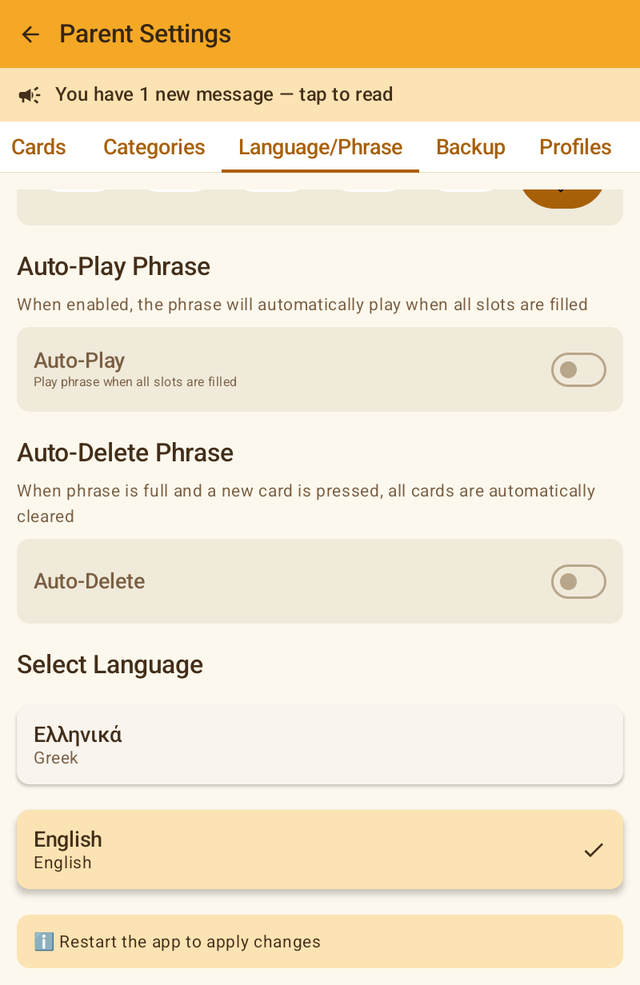
Auto-play
As soon as all slots are filled, the phrase is spoken by itself, without the child pressing ▶.
Auto-delete
When the phrase is full and the child taps a new card, the bar clears and a new phrase starts. The child never gets "stuck" on a full bar.
Language
Greek or English. Changes the menus and instructions. Requires a restart of the app (close it completely and open it again). The starter cards do not change language by themselves. The app offers that on the Cards tab.
8. "Backup" tab
Automatic safety copies
Before every app update a complete copy is kept automatically: all cards, photos, recordings and settings, for all children. It stays on the device. The 6 most recent copies are kept.
- Take a copy now Keeps a copy of the current state. Do this before big changes, e.g. before reorganising categories.
- Restore Puts everything back the way it was at that moment. Changes since then are lost, but a copy of the current state is kept first, so you can come back. The app closes and reopens by itself.
- The bin deletes a copy.
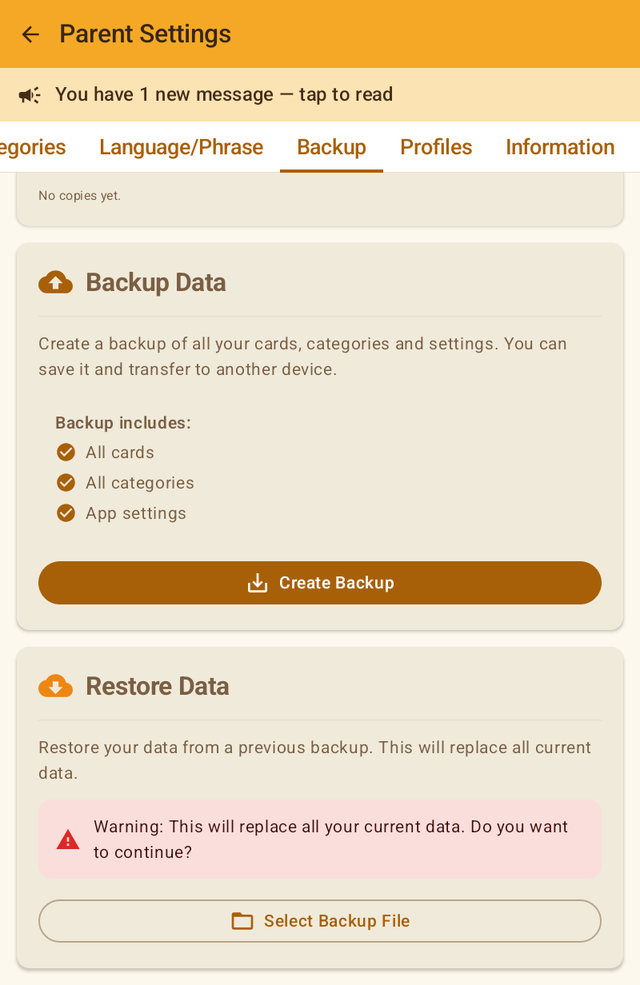
Backup to a file
Creates a .json file with the cards, categories and settings of the active child, which you save wherever you like (Google Drive, email, memory card). Useful for a second tablet, for changing devices, or for handing a ready set of cards to a speech therapist.
Restore from a file
Choose a .json file you created earlier. It replaces all cards and categories of the active child. The app asks for confirmation.
9. "Profiles" tab (therapist mode)
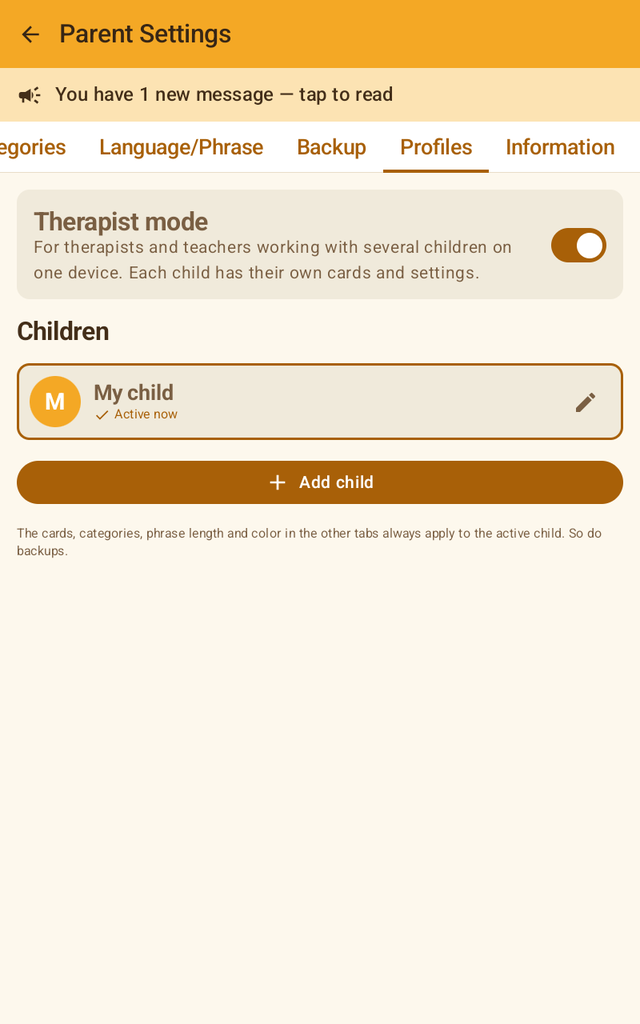
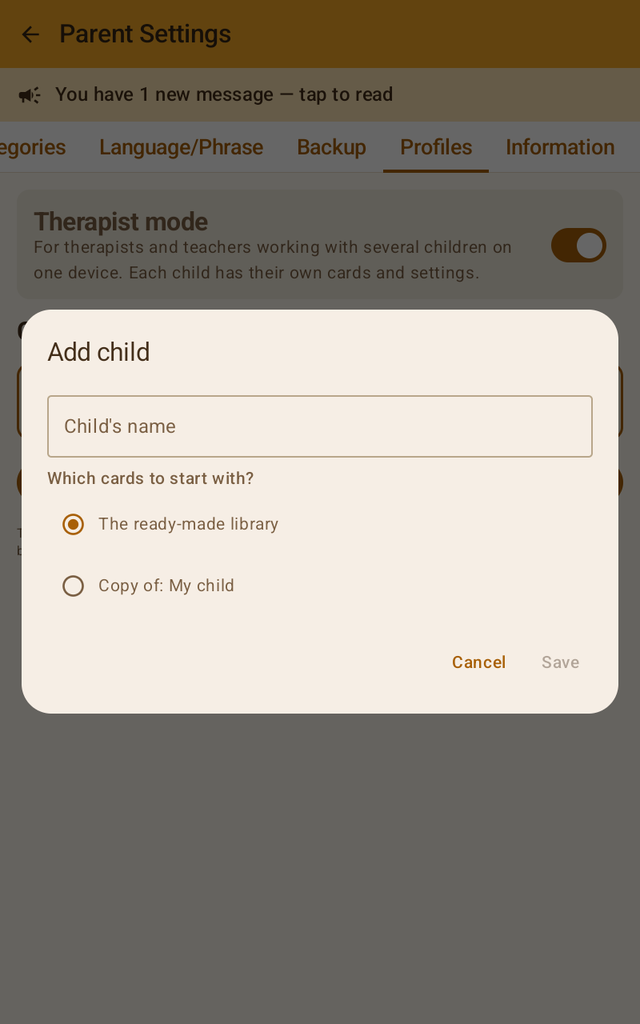
For parents with one child this tab is not needed. It is for speech therapists, teachers and families with several children on the same device.
- Therapist mode. With the switch on, each child has their own cards, categories, phrase length and colour. The active child's name is shown at the top of the child's screen.
- Add child. Give a name and choose whether to start with the ready-made library or with a copy of another child's cards (useful for siblings, or for a "set" you have already built).
- Switching child. Tap a child in the list. With several children, the app also asks "Which child?" when it starts.
- The pencil renames or deletes a child. Deleting removes all of that child's cards and cannot be undone. The first child can never be deleted.
10. "Information" tab
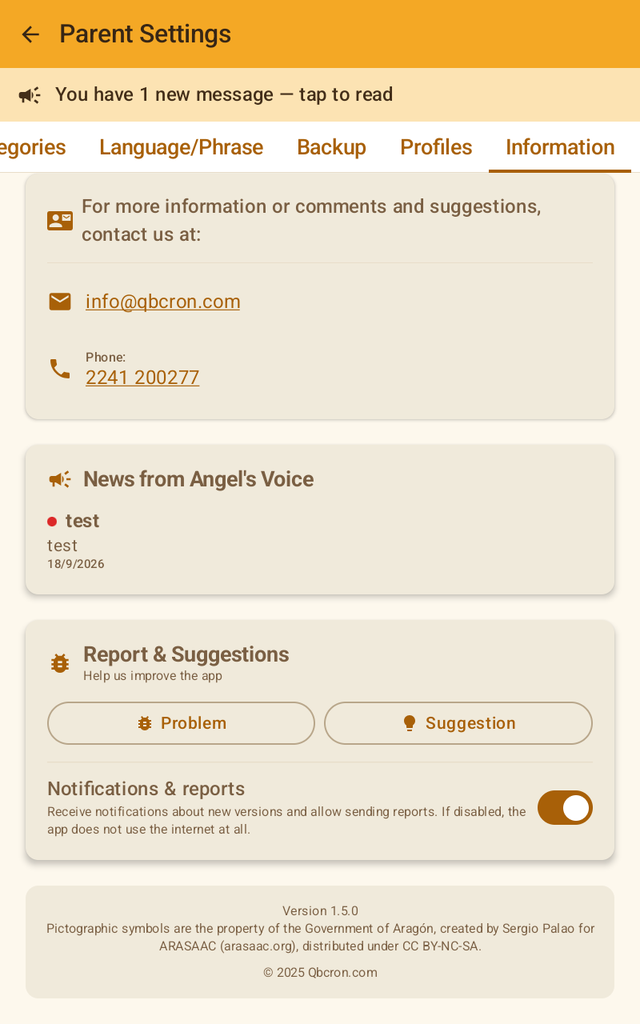
- Contact. Email and phone for help or comments.
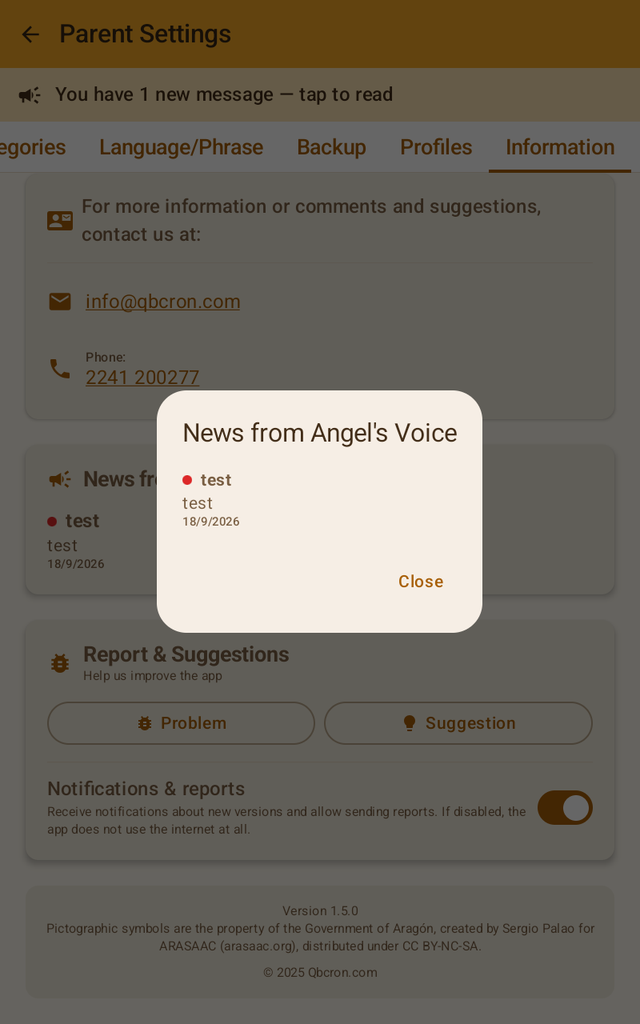
- News from Angel's Voice. Announcements about new versions. They stay here so you can read them whenever you like.
- Report & Suggestions. "Problem" sends a description of the problem together with technical details of the device (model, Android version). "Suggestion" sends your idea. Cards, photos or recordings are never sent.
- Notifications & reports. If you turn this off, the app does not use the internet at all. You will not hear about new versions and cannot send reports; everything else works normally.
- At the bottom: the app version and the ARASAAC pictogram credit.
11. Tips for getting started
- Start with one word. Set the phrase length to 1. The child taps, hears, sees that something happens. Once that is mastered, go to 2, then 3.
- Few cards at first. Better 6 cards the child uses than 84 that confuse them. Delete or move what is not needed yet. You can always add them back later (the app will offer).
- The most important cards: Yes, No, I want, Help, Stop, It hurts. A child who can say "stop" and "it hurts" has already gained a lot.
- Your own photos and your own voice. Mom with Mom's photo and Mom's voice.
- Do not change pictures suddenly. The child learns their pictures. If you want to change them, do it together, one or two at a time.
- Before experiments, take a copy. "Take a copy now" on the Backup tab. If something goes wrong, restore with one tap.
- Modelling. Use the app yourself in front of the child: tap "I want" "Water" and hand over the water. That is how the child learns the cards have power.
12. Questions and troubleshooting
I forgot the PIN
The PIN is 1234 on all devices. It does not change.
The app does not speak, or speaks with a "robotic" voice
The Greek starter cards have a built-in voice and always play. If your own or English cards are not spoken, the device has no text-to-speech voice for that language. Solutions: record the word yourself (edit card → "Use my recording"), or install "Speech Recognition & Synthesis from Google" from the Play Store with a voice for your language. Also check that the device volume is not at zero.
The update fails to install
If the message says the app was not installed or the signature does not match, download the other APK file from angelsvoice.gr (see Installing). Do not uninstall the app.
After an update something is not the way we knew it
Parent settings → Backup → Restore the "before update" copy. Everything goes back the way it was.
The child sees fewer cards than on the tablet
On small screens the cards are in 2 or 3 columns and the child scrolls. On a tablet from 7 inches up, 9 cards are visible without scrolling. You can reduce the phrase length so the bar takes less space.
I want the same set of cards on a second device
Backup → Create Backup → send the file to the second device → Restore from file. Your own photos and recordings need to be added again by hand.
How do I change the order of the cards?
On the Cards tab, first pick one category in the filter. Then press and hold a card (on the ≡ handle or anywhere on it) and drag it up or down. The new order is saved the moment you let go, and it is the order your child sees. The same works for categories on their own tab.
Can I write cards in another language?
Yes. The card text is free. To be spoken correctly, the device needs a voice for that language, or you record the word yourself.
13. Privacy
The child's cards, photos and recordings never leave the device. The app has no user account, no ads, and does not track what the child taps. It uses the internet for two things only: receiving announcements about new versions, and sending reports that you write. Both are switched off with the "Notifications & reports" switch on the Information tab.
The pictures of the starter cards are pictograms from ARASAAC (Government of Aragón, author Sergio Palao), licensed CC BY-NC-SA. The app is free of charge.